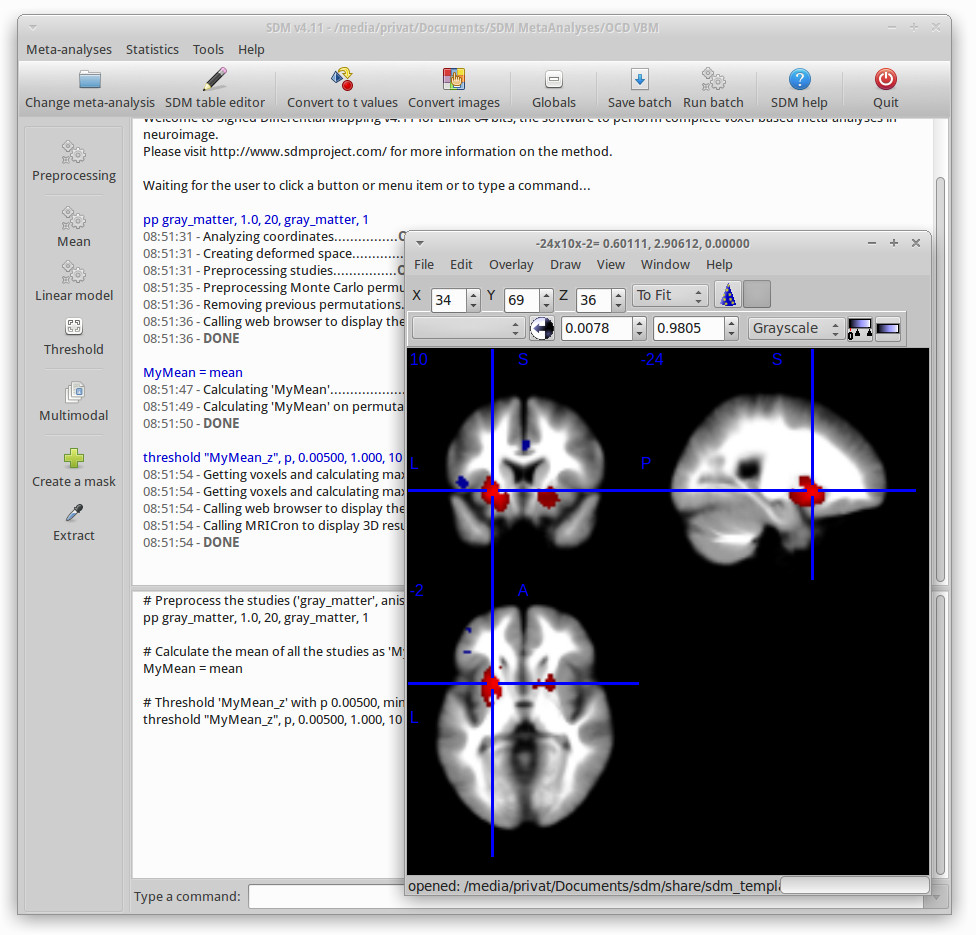
<?xml version="1.0" encoding="utf-8"?><feed xmlns="http://www.w3.org/2005/Atom" xml:lang="en"><generator uri="https://jekyllrb.com/" version="4.4.1">Jekyll</generator><link href="https://mindlabresearch.github.io/feed.xml" rel="self" type="application/atom+xml"/><link href="https://mindlabresearch.github.io/" rel="alternate" type="text/html" hreflang="en"/><updated>2026-06-01T04:22:26+00:00</updated><id>https://mindlabresearch.github.io/feed.xml</id><title type="html">blank</title><subtitle>Multimodel insights into neuopsychiatric disorders. </subtitle><entry><title type="html">ggseg visualization with Freesurfer data in R</title><link href="https://mindlabresearch.github.io/blog/2020/ggseg-viz-freesurfer/" rel="alternate" type="text/html" title="ggseg visualization with Freesurfer data in R"/><published>2020-05-16T01:59:00+00:00</published><updated>2020-05-16T01:59:00+00:00</updated><id>https://mindlabresearch.github.io/blog/2020/ggseg-viz-freesurfer</id><content type="html" xml:base="https://mindlabresearch.github.io/blog/2020/ggseg-viz-freesurfer/"><![CDATA[<p><img src="/assets/img/blog/freesurfer-viz-ggseg.png" width="600"/></p> <h2 id="purpose-of-this-post">Purpose of this Post</h2> <p>I enjoy finding new ways to visualize data in a meaningful (and also aesthetically pleasing) way. Finding the right tools in order to get your message across adds value, but can be challenging. When I learned about this visualization toolbox with the multitude of options it has, I had to learn how to use it – and it’s actually quite simple!</p> <p>The links to both the blog and GitHub pages below are <em>extremely informative</em> (so please also refer to them)! Here, I wanted to outline the installation process I used in order to get the program running in RStudio (Part 1) and provide some examples of things I have done with the toolbox to potentially spark some inspiration (Part 2)!</p> <h2 id="getting-started">Getting Started</h2> <h3 id="source">Source</h3> <p>All the credits for this awesome toolbox go to Dr. Athanasia Mowinckel &amp; Dr. Didac Vidal Pineiro at the Center for Lifespan Changes in Brain and Cognition, University of Oslo. Be sure to check out Dr. Mowinckel’s <a href="https://drmowinckels.io/blog/2018/introducing-the-ggseg-r-package-for-brain-segmentations/">blog</a>, which has a great overview of the different options available with the toolbox.</p> <ul> <li><strong>ggseg GitHub link:</strong> <a href="https://github.com/LCBC-UiO/ggseg">GitHub - ggseg/ggseg: Plotting tool for brain atlases, in ggplot</a></li> <li><strong>ggseg GitHub README.md:</strong> <a href="https://github.com/LCBC-UiO/ggseg/blob/master/README.md">ggseg/README.md at master · ggseg/ggseg · GitHub</a></li> </ul> <p><strong>Note:</strong> There seem to be some updates happening at the moment with the toolbox, so this may not work 100% for you, but it worked for me in May of 2020. Updates to come if this changes.</p> <h3 id="compatibility--what-i-used">Compatibility – What I Used</h3> <ul> <li><strong>Operating System:</strong> Windows 10</li> <li><strong>R version:</strong> 4.0.0</li> <li><strong>RStudio version:</strong> 1.2.5033</li> </ul> <h2 id="installation-guide">Installation Guide</h2> <h3 id="libraries-to-install-prior-to-ggseg">Libraries to Install Prior to ggseg</h3> <div class="language-r highlighter-rouge"><div class="highlight"><pre class="highlight"><code><span class="n">library</span><span class="p">(</span><span class="n">ggplot2</span><span class="p">)</span><span class="w">
</span><span class="n">library</span><span class="p">(</span><span class="n">devtools</span><span class="p">)</span><span class="w">
</span><span class="n">library</span><span class="p">(</span><span class="n">tidyselect</span><span class="p">)</span><span class="w">
</span><span class="n">library</span><span class="p">(</span><span class="n">magrittr</span><span class="p">)</span><span class="w">
</span><span class="n">library</span><span class="p">(</span><span class="n">rmarkdown</span><span class="p">)</span><span class="w">
</span><span class="n">library</span><span class="p">(</span><span class="n">stringr</span><span class="p">)</span><span class="w">
</span><span class="n">library</span><span class="p">(</span><span class="n">stringi</span><span class="p">)</span><span class="w">
</span><span class="n">library</span><span class="p">(</span><span class="n">tibble</span><span class="p">)</span><span class="w">
</span><span class="n">library</span><span class="p">(</span><span class="n">dplyr</span><span class="p">)</span><span class="w">
</span><span class="n">library</span><span class="p">(</span><span class="n">purrr</span><span class="p">)</span><span class="w">
</span><span class="n">library</span><span class="p">(</span><span class="n">pandocfilters</span><span class="p">)</span><span class="w">
</span><span class="n">library</span><span class="p">(</span><span class="n">tidyr</span><span class="p">)</span><span class="w">
</span></code></pre></div></div> <p>If some libraries are missing, use the command below (using “tidyr” as an example):</p> <div class="language-bash highlighter-rouge"><div class="highlight"><pre class="highlight"><code>install.packages<span class="o">(</span><span class="s2">"tidyr"</span><span class="o">)</span>
</code></pre></div></div> <h3 id="installing-ggseg">Installing ggseg</h3> <p>On the GitHub website, they state to use:</p> <div class="language-bash highlighter-rouge"><div class="highlight"><pre class="highlight"><code>install.packages<span class="o">(</span><span class="s2">"remotes"</span><span class="o">)</span>
remotes::install_github<span class="o">(</span><span class="s2">"LCBC-UiO/ggseg"</span>, build_vignettes <span class="o">=</span> TRUE<span class="o">)</span>
</code></pre></div></div> <p>Currently, there is a bug that is being fixed in the program with the Vignettes, so you will need to modify the code until this is fixed to:</p> <div class="language-bash highlighter-rouge"><div class="highlight"><pre class="highlight"><code>install.packages<span class="o">(</span><span class="s2">"remotes"</span><span class="o">)</span>
remotes::install_github<span class="o">(</span><span class="s2">"LCBC-UiO/ggseg"</span>, build_vignettes <span class="o">=</span> FALSE<span class="o">)</span>
</code></pre></div></div> <p>Personally, I found that <code class="language-plaintext highlighter-rouge">devtools</code> works for installing the program without any problems. Since I already installed <code class="language-plaintext highlighter-rouge">devtools</code> above, just enter the following in RStudio:</p> <div class="language-r highlighter-rouge"><div class="highlight"><pre class="highlight"><code><span class="n">devtools</span><span class="o">::</span><span class="n">install_github</span><span class="p">(</span><span class="s2">"LCBC-UiO/ggseg"</span><span class="p">,</span><span class="w"> </span><span class="n">build_vignettes</span><span class="w"> </span><span class="o">=</span><span class="w"> </span><span class="kc">FALSE</span><span class="p">)</span><span class="w">
</span><span class="n">library</span><span class="p">(</span><span class="n">ggseg</span><span class="p">)</span><span class="w">
</span></code></pre></div></div> <p>This will take a little bit of time and install version 1.5.4. You should see this in your window as:</p> <div class="language-bash highlighter-rouge"><div class="highlight"><pre class="highlight"><code>building <span class="s1">'ggseg_1.5.4.tar.gz'</span>
</code></pre></div></div> <h3 id="atlases">Atlases</h3> <p>After installing ggseg, there are two default atlases pre-installed based on the default FreeSurfer output from running <code class="language-plaintext highlighter-rouge">recon-all</code>:</p> <ul> <li><strong>Desikan-Killany cortical atlas (dk)</strong></li> <li><strong>Subcortical segmentation atlas (aseg)</strong></li> </ul> <p>Additionally, the following atlases are available, and the links show examples for how to use the atlases. These are beyond the scope of this post; I will focus just on the default atlases included in the package.</p> <ul> <li><a href="https://github.com/LCBC-UiO/ggsegYeo2011/blob/master/README.md">Yeo</a> – both 7 and 17 network data</li> <li><a href="https://github.com/LCBC-UiO/ggsegDesterieux/blob/master/README.md">Desterieux</a> – the 2009 atlas</li> <li><a href="https://github.com/LCBC-UiO/ggsegChen/blob/master/README.md">Chen</a> – both thickness and area maps</li> <li><a href="https://github.com/LCBC-UiO/ggsegSchaefer/blob/master/README.md">Schaefer</a> – both 17 and 7 networks</li> <li><a href="https://github.com/LCBC-UiO/ggsegGlasser/blob/master/README.md">Glasser</a> – full atlas</li> <li><a href="https://github.com/LCBC-UiO/ggsegJHU/blob/master/README.md">JHU</a> – white tract atlas</li> <li><a href="https://github.com/LCBC-UiO/ggsegTracula/blob/master/README.md">Tracula</a> – white tract atlas</li> <li><a href="https://github.com/LCBC-UiO/ggsegICBM/blob/master/README.md">ICBM</a> – white tract atlas</li> <li><a href="https://github.com/LCBC-UiO/ggsegHO/blob/master/README.md">HO</a> – Harvard-Oxford cortical (FSL)</li> <li><a href="https://github.com/LCBC-UiO/ggsegDefaultExtra/blob/master/README.md">DefaultExtra</a> – extra 2D view for dk, p/a division</li> </ul> <p>To install the extra atlases, first install ggsegExtra:</p> <div class="language-r highlighter-rouge"><div class="highlight"><pre class="highlight"><code><span class="n">devtools</span><span class="o">::</span><span class="n">install_github</span><span class="p">(</span><span class="s2">"LCBC-UiO/ggsegExtra"</span><span class="p">,</span><span class="w"> </span><span class="n">build_vignettes</span><span class="w"> </span><span class="o">=</span><span class="w"> </span><span class="kc">FALSE</span><span class="p">)</span><span class="w">
</span><span class="n">library</span><span class="p">(</span><span class="n">ggsegExtra</span><span class="p">)</span><span class="w">
</span></code></pre></div></div> <p>To check which atlases are available, enter the following command:</p> <div class="language-r highlighter-rouge"><div class="highlight"><pre class="highlight"><code><span class="n">ggseg_atlas_repos</span><span class="p">()</span><span class="w">
</span></code></pre></div></div> <p>Install the atlas you would like to use (using the Glasser atlas as an example):</p> <div class="language-r highlighter-rouge"><div class="highlight"><pre class="highlight"><code><span class="n">devtools</span><span class="o">::</span><span class="n">install_github</span><span class="p">(</span><span class="s2">"LCBC-UiO/ggsegGlasser"</span><span class="p">)</span><span class="w">
</span><span class="n">library</span><span class="p">(</span><span class="n">ggsegGlasser</span><span class="p">)</span><span class="w">
</span></code></pre></div></div> <p>Now you should have ggseg installed and ready to go without any problems!</p>]]></content><author><name></name></author><category term="freesurfer"/><category term="ggseg"/><category term="freesurfer"/><summary type="html"><![CDATA[A step-by-step guide for installing and using the ggseg visualization toolbox in RStudio, covering required libraries, installation steps, and atlas options for neuroimaging data.]]></summary></entry><entry><title type="html">Installing Freesurfer Using Enhanced Mode Ubuntu 18.04 for Hyper-V on Windows 10</title><link href="https://mindlabresearch.github.io/blog/2020/installing-freesurfer/" rel="alternate" type="text/html" title="Installing Freesurfer Using Enhanced Mode Ubuntu 18.04 for Hyper-V on Windows 10"/><published>2020-03-30T01:59:00+00:00</published><updated>2020-03-30T01:59:00+00:00</updated><id>https://mindlabresearch.github.io/blog/2020/installing-freesurfer</id><content type="html" xml:base="https://mindlabresearch.github.io/blog/2020/installing-freesurfer/"><![CDATA[<h1 id="prerequisites">Prerequisites</h1> <p>Before getting started, I first installed Ubuntu within Hyper-V on my Windows 10 computer following the instructions below:<br/> <a href="https://www.hanselman.com/blog/UsingEnhancedModeUbuntu1804ForHyperVOnWindows10.aspx">Using Enhanced Mode Ubuntu 18.04 for Hyper-V on Windows 10 - Scott Hanselman’s Blog</a></p> <h1 id="link-to-freesurfer-installation-page">Link to FreeSurfer Installation Page</h1> <p>While the link below is extremely well-written and helpful, I noticed a few steps during my installation process using Ubuntu for Hyper-V that required additional steps, not listed on the page. This guide is meant to help others using the same system with the installation procedure – described in detail below.<br/> <a href="https://surfer.nmr.mgh.harvard.edu/fswiki/DownloadAndInstall">DownloadAndInstall - Free Surfer Wiki</a></p> <h1 id="installation-steps">Installation Steps</h1> <h2 id="1-download-freesurfer">1. Download FreeSurfer</h2> <p>Download FreeSurfer for Linux from the download page while logged into your Ubuntu VM.</p> <p><strong>File to download:</strong><br/> <code class="language-plaintext highlighter-rouge">freesurfer-Linux-centos6_x86_64-stable-pub-v6.0.0.tar.gz</code></p> <p><strong>Link to download:</strong><br/> <a href="https://surfer.nmr.mgh.harvard.edu/pub/dist/freesurfer/6.0.0/freesurfer-Linux-centos6_x86_64-stable-pub-v6.0.0.tar.gz">Download FreeSurfer</a><br/> <em>(Note: You may need to be logged into your Gmail account to download the file.)</em></p> <h2 id="2-change-permissions">2. Change Permissions</h2> <p>Ensure you have permissions to write into <code class="language-plaintext highlighter-rouge">/usr/local/</code>, where you will unpack the FreeSurfer package.</p> <div class="language-bash highlighter-rouge"><div class="highlight"><pre class="highlight"><code><span class="nb">sudo chmod</span> <span class="nt">-R</span> 777 /usr/local/
</code></pre></div></div> <h2 id="3-unpack-freesurfer-package">3. Unpack FreeSurfer Package</h2> <p>Unpack the package in the directory where you saved it. For example:</p> <div class="language-bash highlighter-rouge"><div class="highlight"><pre class="highlight"><code><span class="nb">cd</span> /home/shaas/Downloads
<span class="nb">tar</span> <span class="nt">-C</span> /usr/local <span class="nt">-xzvf</span> freesurfer-Linux-centos6_x86_64-stable-pub-v6.0.0.tar.gz
</code></pre></div></div> <h2 id="4-install-additional-necessary-packages">4. Install Additional Necessary Packages</h2> <div class="language-bash highlighter-rouge"><div class="highlight"><pre class="highlight"><code><span class="nb">sudo </span>apt-get <span class="nt">-y</span> <span class="nb">install </span>bc binutils libgomp1 perl psmisc <span class="nb">sudo tar </span>tcsh unzip uuid-dev vim-common libjpeg62-dev
</code></pre></div></div> <h2 id="5-setup--configuration">5. Setup &amp; Configuration</h2> <p>To begin using FreeSurfer, open a terminal window, define an environment variable called <strong>FREESURFER_HOME</strong> (set to the location where FreeSurfer was installed), and source the setup script. This sourcing needs to be done every time you open a new terminal window, or you can add the lines below to your default setup file (e.g., <code class="language-plaintext highlighter-rouge">.bashrc</code> or <code class="language-plaintext highlighter-rouge">.cshrc</code>).</p> <div class="language-bash highlighter-rouge"><div class="highlight"><pre class="highlight"><code><span class="nb">export </span><span class="nv">FREESURFER_HOME</span><span class="o">=</span>/usr/local/freesurfer
<span class="nb">source</span> <span class="nv">$FREESURFER_HOME</span>/SetUpFreeSurfer.sh
</code></pre></div></div> <p>If done correctly, you should see output similar to:</p> <div class="language-plaintext highlighter-rouge"><div class="highlight"><pre class="highlight"><code>Setting up environment for FreeSurfer/FS-FAST (and FSL)
FREESURFER_HOME /usr/local/freesurfer
FSFAST_HOME     /usr/local/freesurfer/fsfast
FSF_OUTPUT_FORMAT nii
SUBJECTS_DIR    /usr/local/freesurfer/subjects
MNI_DIR         /usr/local/freesurfer/mni
</code></pre></div></div> <h2 id="6-get-a-license-to-use-freesurfer">6. Get a License to Use FreeSurfer</h2> <p>A license key must be obtained to make the FreeSurfer tools operational. The license is free and comes in the form of a <code class="language-plaintext highlighter-rouge">license.txt</code> file. Once obtained, copy it to your FreeSurfer installation directory (the location defined by the <strong>FREESURFER_HOME</strong> environment variable).</p> <p><strong>Get license here:</strong><br/> <a href="https://surfer.nmr.mgh.harvard.edu/registration.html">FreeSurfer Registration Form</a></p> <p>After downloading in Ubuntu, copy the file to your FreeSurfer folder:</p> <div class="language-bash highlighter-rouge"><div class="highlight"><pre class="highlight"><code><span class="nb">cp</span> /home/shaas/Downloads/license.txt /usr/local/freesurfer
</code></pre></div></div> <h2 id="7-additional-items-to-install">7. Additional Items to Install</h2> <div class="language-bash highlighter-rouge"><div class="highlight"><pre class="highlight"><code><span class="nb">sudo </span>apt-get update
<span class="nb">sudo </span>apt-get upgrade
<span class="nb">sudo </span>apt-get <span class="nb">install </span>libtool autoconf build-essential pkg-config automake tcsh
</code></pre></div></div>]]></content><author><name></name></author><category term="freesurfer"/><category term="installation,"/><category term="freesurfer"/><summary type="html"><![CDATA[Guide to installing FreeSurfer on Ubuntu 18.04 in Hyper-V (Windows 10) with additional setup steps]]></summary></entry><entry><title type="html">Meta-analysis Tools</title><link href="https://mindlabresearch.github.io/blog/2015/meta-analysis-tools/" rel="alternate" type="text/html" title="Meta-analysis Tools"/><published>2015-11-20T01:59:00+00:00</published><updated>2015-11-20T01:59:00+00:00</updated><id>https://mindlabresearch.github.io/blog/2015/meta-analysis-tools</id><content type="html" xml:base="https://mindlabresearch.github.io/blog/2015/meta-analysis-tools/"><![CDATA[<h2 id="introduction">Introduction</h2> <p><strong>Seed-based <em>d</em> Mapping</strong> (formerly <em>“Signed Differential Mapping”</em>) is a statistical technique for <strong>meta-analyzing</strong> studies on differences in brain activity or structure which used neuroimaging techniques such as <strong>fMRI, VBM, DTI or PET</strong>. The methods have been fully validated in several studies (see references below), and meta-analyses using this method have been already published at the highest quality journals.</p> <p><img src="/assets/img/blog/sdm_screenshot.jpg" alt="sdm_screenshot"/></p> <h2 id="the-method">The method</h2> <p>An <a href="https://www.sdmproject.com/manual?show=Introduction">introduction of the method</a> can be found in the <a href="https://www.sdmproject.com/manual">SDM Reference Manual</a>.</p> <p>Briefly, some of the features are:</p> <ul> <li>Possibility of combining studies from which only <strong>peak coordinates</strong> are available with studies from which <strong>SPM t-maps</strong> are available, highly increase the power of the meta-analysis.</li> <li>Use of <strong>specific masks correlation templates</strong> for <strong>fMRI</strong>, <strong>PET</strong>, <strong>gray matter</strong>, <strong>white matter</strong>, <strong>fractional anisotropy</strong>, <strong>TBSS</strong> and <strong>cerebrospinal fluid</strong> to account for the anisotropy in the spatial covariance of the brain, highly increasing the accuracy of the recreation of the effect size maps.</li> <li>Accounting for peaks’ <strong>effect-size</strong> and <strong>signed maps</strong> to counteract positive and negative differences.</li> <li>Weighting the calculations for <strong>intra-study variance</strong> (i.e. studies with large sample sizes and/or lower error contribute more), <strong>inter-study heterogeneity</strong> and other optional weights.</li> <li>Use of the <strong>random-effects general linear models</strong> to allow meta-analytical <a href="http://www.sdmproject.com/manual?show=lm_groups">comparisons between groups, meta-regressions and use of covariates</a>.</li> <li>Complementary analyses such as <strong>exploration of heterogeneity</strong> (by means of heterogeneity maps, subgroup analyses and <a href="http://www.sdmproject.com/manual?show=lm_regression">meta-regressions</a>) and <a href="http://www.sdmproject.com/manual?show=jackknife">jackknife analyses</a> (to assess the<strong>replicability</strong> of the results)</li> </ul> <p>Other useful tools within the website:</p> <ul> <li><a href="http://www.sdmproject.com/utilities/">Web utilities for conversions</a></li> <li><a href="http://www.sdmproject.com/software/tutorial.pdf">Tutorial overview of method and how to implement using data</a></li> <li><a href="http://www.sdmproject.com/software/">Downloading the software</a> <ul> <li>Available for: Linux, Windows, Mac OSX, and SPM</li> </ul> </li> </ul>]]></content><author><name></name></author><category term="meta-analysis"/><category term="meta,"/><category term="analysis,"/><category term="meta-analysis"/><summary type="html"><![CDATA[Guide on meta-analysis tools]]></summary></entry></feed>